Here is a list of examples on how to style Fluent Auth Security plugin.
I am using Fluent Snippets plugin and style it using CSS inside a PHP code snippet. It is somewhat tricky to style Fluent Auth login and signup forms as it can not be done with just using CSS.
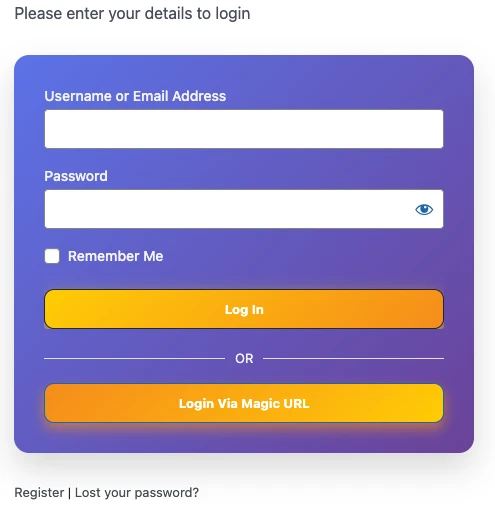
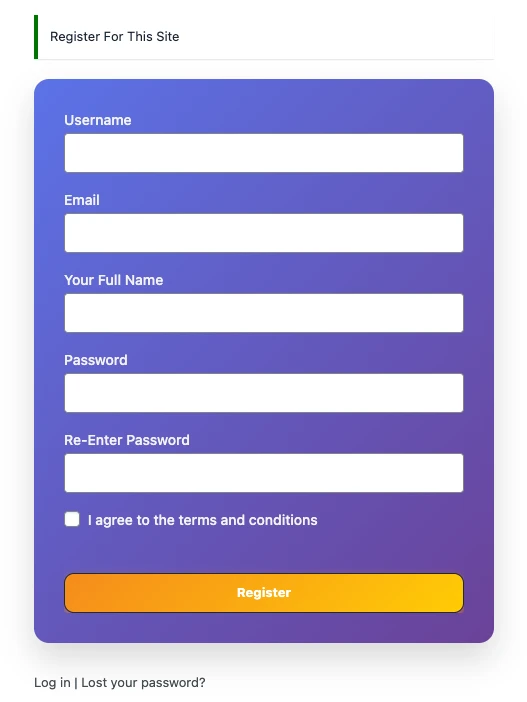
Example 1. Here is a nicely styled login and register screen.
Fluent Auth (Security) Login form adjusted with CSS
Fluent Auth (Security) Register form adjusted with CSS
The Code I used to style the above forms
add_action('login_enqueue_scripts', function () {

    if ( ! wp_style_is('fls-login-customizer', 'enqueued') && defined('FLUENT_AUTH_PLUGIN_URL') ) {
        wp_enqueue_style(
            'fls-login-customizer',
            FLUENT_AUTH_PLUGIN_URL . 'dist/public/login_customizer.css',
            [],
            defined('FLUENT_AUTH_VERSION') ? FLUENT_AUTH_VERSION : null
        );
    }

    $extra_css = '

/* Fade-in animation for the entire form */
        #loginform, #registerform
        {
            animation: fadeIn 1s ease forwards !important;
        }
        @keyframes fadeIn {
            from { opacity: 0; transform: translateY(-20px); }
            to { opacity: 1; transform: translateY(0); }
        }


/* login form. */
    #loginform {
        background: linear-gradient(135deg, #667eea, #764ba2);
        padding: 30px;
        border-radius: 15px;
        box-shadow: 0 16px 32px rgba(0, 0, 0, 0.15);
        color: whitesmoke !important;
}

/* Log in button */
    .button-primary {
        background: linear-gradient(135deg, #f7971e, #ffd200) !important;
        color: #fff;
        border-radius: 10px !important;
        font-weight: 700 !important;
        width: 100% !important;
        height: 40px !important;
        box-shadow: 0 6px 12px rgba(247, 151, 30, 0.6) !important;
     transition: background 0.4s ease, box-shadow 0.4s ease !important;
        text-decoration: none;
        text-shadow: none;
}

.button-primary:hover {
       background: linear-gradient(135deg, #ffd200, #f7971e) !important;
       box-shadow: 0 10px 20px rgba(255, 210, 0, 0.8) !important;
}

/* Magic login button */
    .magic_btn_secondary {
        color: white !important;
        width: 100% !important;  /* Set same width on both */
        height: 40px !important;
        text-decoration: none;
        text-shadow: none;
}

/* OR text between Log in and Magic login buttons. */
.fls_magic-or span {
    color: whitesmoke !important;
}

/* Register form */
    #registerform {
        background: linear-gradient(135deg, #667eea, #764ba2);
        padding: 30px;
        border-radius: 15px;
        box-shadow: 0 16px 32px rgba(0, 0, 0, 0.15);
        color: whitesmoke !important;
}

.notice.notice-info.message.register {
        border-left: 4px solid green;
}
    ';

    wp_add_inline_style('fls-login-customizer', $extra_css);
});
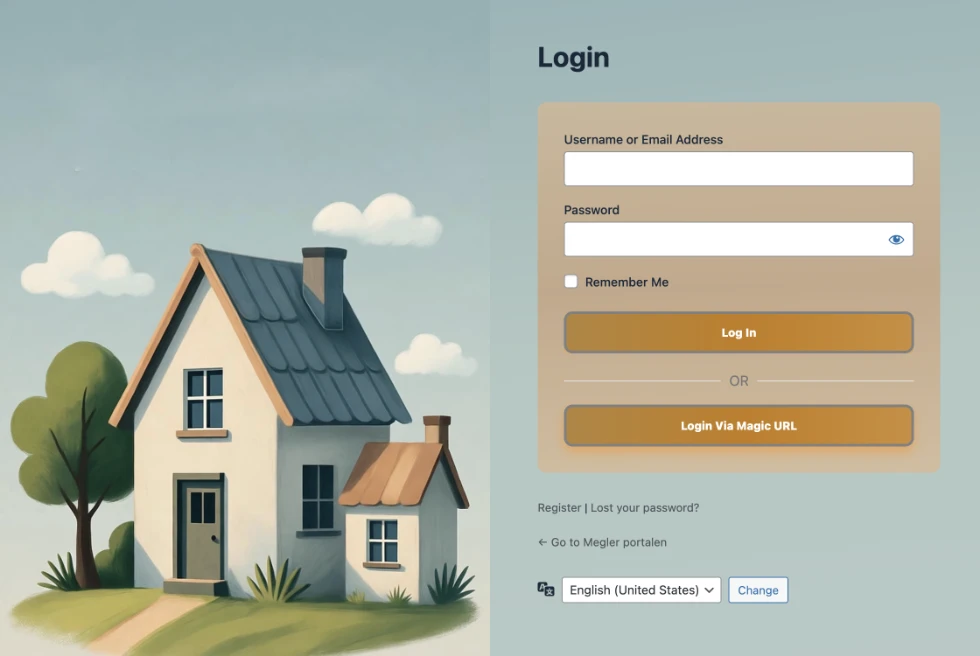
Example 2. This time taking colors from the left AI image and using it in the background and the form.
Using on the left side an AI generated image. I am using some of the same colors in the right side login screen as can be seen in the image. The code I used it below the image.
Code I added into Fluent Snippets Code plugin. This is PHP and CSS code. Add the following into a PHP code snippet.
add_action('login_enqueue_scripts', function () {

    // Enqueue Fluent Auth login CSS if not already loaded
    if ( ! wp_style_is('fls-login-customizer', 'enqueued') && defined('FLUENT_AUTH_PLUGIN_URL') ) {
        wp_enqueue_style(
            'fls-login-customizer',
            FLUENT_AUTH_PLUGIN_URL . 'dist/public/login_customizer.css',
            [],
            defined('FLUENT_AUTH_VERSION') ? FLUENT_AUTH_VERSION : null
        );
    }

    $advanced_css = '
        /* Right area */

        /* Fade-in animation for the entire form */
        #loginform,  {
            animation: fadeIn 1s ease forwards !important;
        }
        @keyframes fadeIn {
            from { opacity: 0; transform: translateY(-20px); }
            to { opacity: 1; transform: translateY(0); }
        }

        .fls_login_form_wrap {
             background: linear-gradient(174deg,rgba(149, 180, 183, 1) 0%, rgba(178, 199, 194, 1) 50%, rgba(182, 201, 197, 1) 100%) !important;
             font-size: 16px !important;
        }

        /* Login form background with subtle gradient and padding */
        #loginform {
            background: linear-gradient(358deg,rgba(231, 181, 130, 0.6) 0%, rgba(209, 149, 99, 0.6) 50%, rgba(231, 181, 130, 0.6) 100%);
            padding: 30px;
            border-radius: 10px;

        }

#loginform .button-primary {
    background: linear-gradient(90deg,rgba(180, 133, 58, 1) 0%, rgba(196, 125, 18, 1) 52%, rgba(204, 142, 55, 1) 100%) !important;
    border: 3px grey solid !important;
    border-radius: 10px !important;
    width: 100% !important;
    height: 48px !important;
    font-weight: 800 !important;
    color: white !important;
    box-shadow: 0 6px 12px rgba(247, 151, 30, 0.6) !important;
    transition: background 0.4s ease, box-shadow 0.4s ease !important;
    cursor: pointer !important;
}

#loginform  .button-primary:hover {
    background: linear-gradient(90deg,rgba(180, 133, 58, 1) 0%, rgba(196, 125, 18, 1) 52%, rgba(204, 142, 55, 1) 100%) !important;
    border: 3px black solid !important;
    color: white !important;
}

/* Magic login button */
    .magic_btn_secondary {
        width: 100% !important;
        height: 48px !important;
}

    #registerform {
        padding: 15px;
        border-radius: 9px;
        font: 16px;
}

/* Register form button */
#registerform #wp-submit.button-primary {
        background-color: #E0A36A !important;
        color: #fff;
        width: 100% !important;
        height: 48px !important;
        font-weight: 600 !important;
        text-decoration: none;
        text-shadow: none;
}

#registerform #wp-submit.button-primary:hover {
    background: linear-gradient(90deg,rgba(180, 133, 58, 1) 0%, rgba(196, 125, 18, 1) 52%, rgba(204, 142, 55, 1) 100%) !important;
    border: 1px grey solid !important;
    color: white !important;
}


    ';

    wp_add_inline_style('fls-login-customizer', $advanced_css);
});
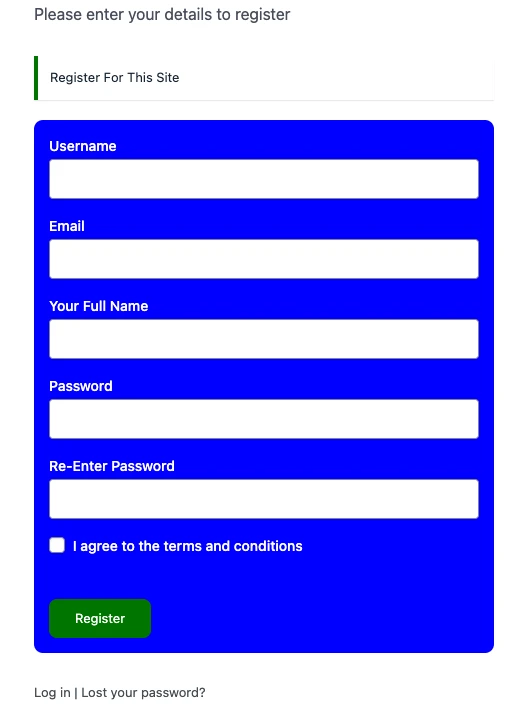
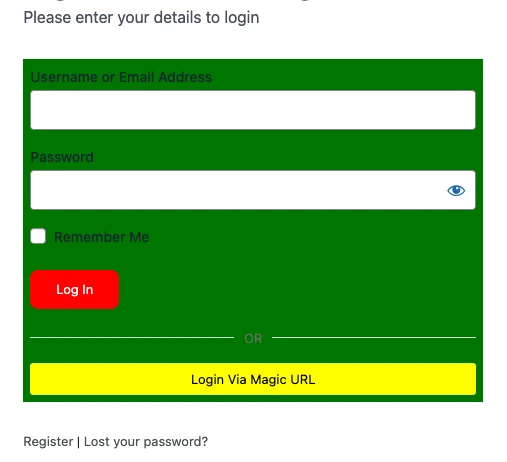
Example 3. Here I went wild with colors just to demonstrate the code.
Fluent Auth (Security) Login form adjusted with CSS
These are not pretty but it shows different areas that are styled.
Fluent Auth (Security) Register form adjusted with CSS
add_action('login_enqueue_scripts', function () {

    if ( ! wp_style_is('fls-login-customizer', 'enqueued') && defined('FLUENT_AUTH_PLUGIN_URL') ) {
        wp_enqueue_style(
            'fls-login-customizer',
            FLUENT_AUTH_PLUGIN_URL . 'dist/public/login_customizer.css',
            [],
            defined('FLUENT_AUTH_VERSION') ? FLUENT_AUTH_VERSION : null
        );
    }

    $extra_css = '

/* login form. */
    #loginform {
        background-color: green;
        padding: 7px;
}


/* Log in button */
    .button-primary {
        background-color: red !important;
        border-color: red !important;
        color: #fff;
        text-decoration: none;
        text-shadow: none;
}

.button-primary:hover {
        background-color: pink !important;
        border-color: pink !important;
        color: black !important;
        text-decoration: none;
        text-shadow: none;
}

/* Magic login button */
    .magic_btn_secondary {
        background-color: yellow !important;
        border-color: yellow !important;
        color: black !important;
        text-decoration: none;
        text-shadow: none;
}

/* Register form */
    #registerform {
        background-color: blue;
        padding: 15px;
        color: white;
        border-radius: 9px;
}

/* Register form button */
#registerform #wp-submit.button-primary {
        background-color: green !important;
        border-color: green !important;
        color: #fff;
        text-decoration: none;
        text-shadow: none;
}

.notice.notice-info.message.register {
        border-left: 4px solid green;
}
    ';

    wp_add_inline_style('fls-login-customizer', $extra_css);
});
Thank you for support for sharing how to adjust Fluent Auth Security plugin using a PHP Code snippet which includes CSS.
Resources
https://fluentauth.com/docs
https://wordpress.org/plugins/fluent-security/
https://github.com/WPManageNinja/fluent-auth-client