Fluent Forms is a great form plugin, but like any form on the web, it can attract spam submissions if it is not properly protected. In this guide, I’ll show you a few practical ways to reduce spam in Fluent Forms using the built-in settings, simple restrictions, and a few extra options you can add when needed.
Basic spam protection
The following settings covers most of the spam protection in Fluent Forms.
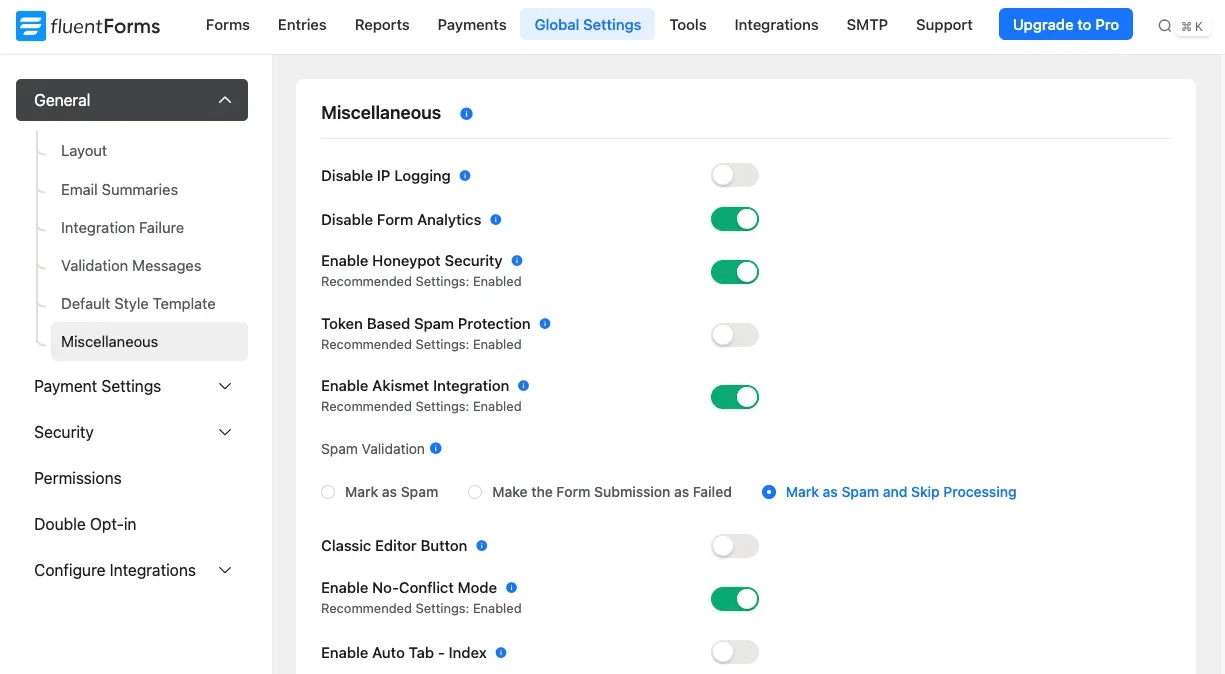
Go to Fluent Forms -> Global Settings -> Miscellaneous.
- Enable Honeypot Security
- Token Based Spam Protection is also good to enable, but it can sometimes cause problems with form submissions. I have left this off in the screenshot below. Caching and security plugins can sometimes cause issues, and autofill can also affect token-based spam protection.
- Add the Akismet plugin to your website and enable Akismet Integration. Once Akismet is turned on, you will see spam validation options.
Mark as Spam – saves the entry as spam.
Make the Form Submission as Failed – the submission is treated as failed.
Mark as Spam and Skip Processing – marks submission as spam and stops further processing.
Additional Security
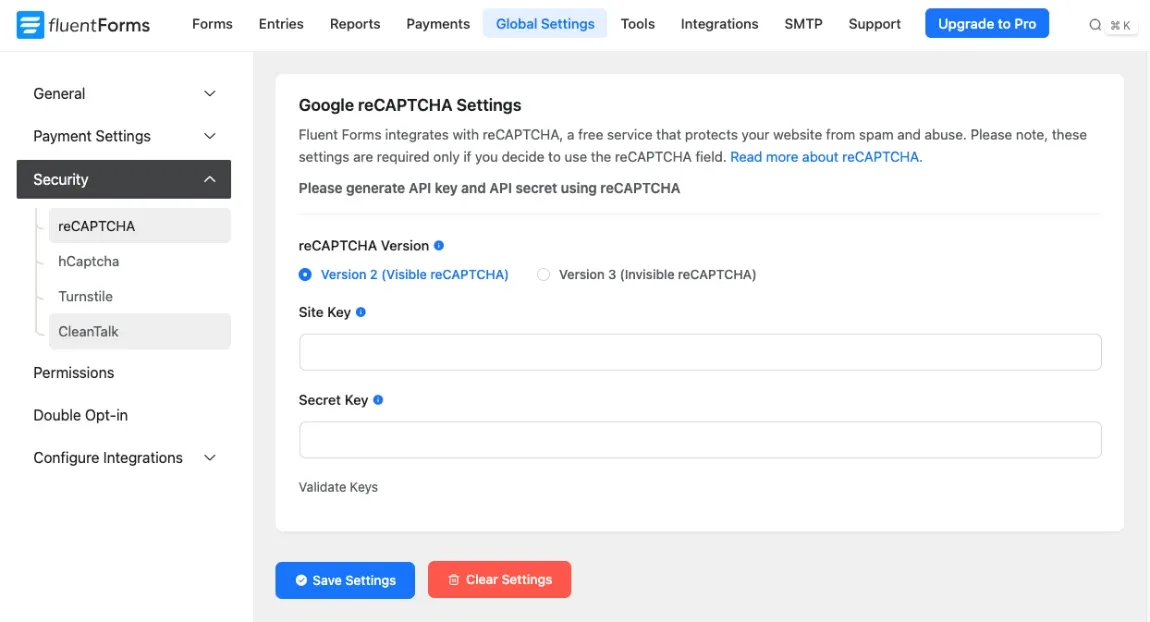
Go to Fluent Forms -> Global Settings -> Security.
Here you can add various CAPTCHAs as well as connect with the CleanTalk plugin. This is useful if you want an extra layer of protection beyond Honeypot, Akismet, and token-based spam protection.
Scheduling & Restrictions
This is for individual form use only.
Go to Fluent Forms -> Hover over a form and click Settings. In Settings & Integrations -> Under the Settings tab select Scheduling & Restrictions.
Another option is if you are editing a form you can then select Settings & Integrations…
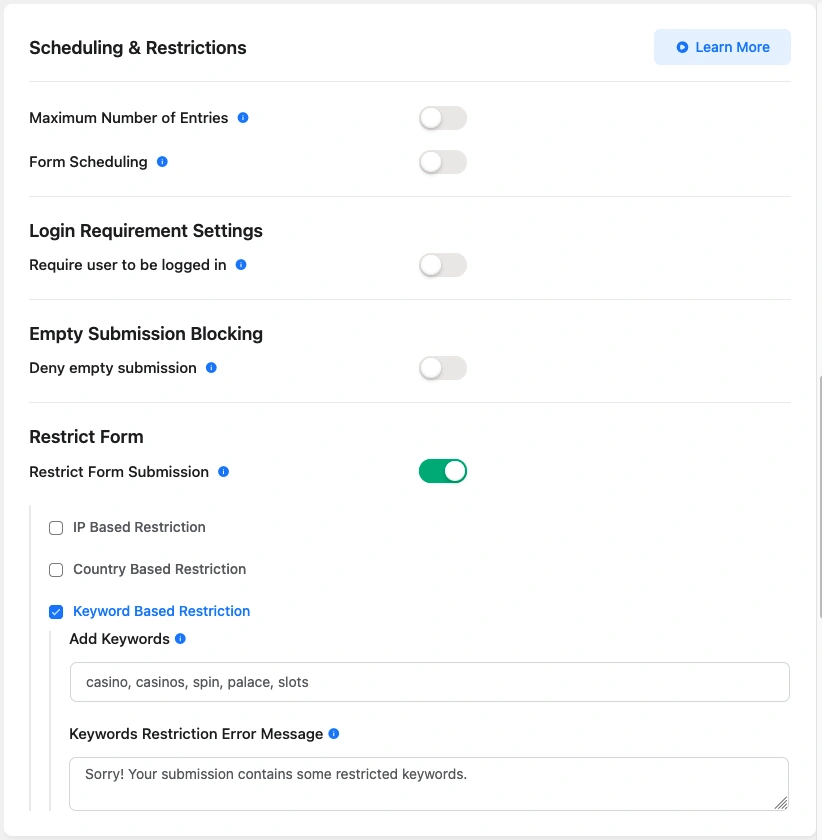
Scheduling & Restrictions that can help reduce spam before a submission reaches your inbox. You can limit when a form is available, require users to log in, block empty submissions, and restrict entries by IP, country, or keywords or more.
Maximum Number of Entries
If you want to stop a form after it receives a certain number of submissions, turn on Maximum Number of Entries. This is useful for limited-time campaigns, registrations, or any form that should only accept a fixed number of responses.
Form Scheduling
Use Form Scheduling when you want the form to open and close at specific times. You can define the start and end date, which is helpful for event signups, promotions, or other time-sensitive forms.
Login Requirement Settings
The Login Requirement Settings option lets you require users to be logged in before they can submit the form. That can help cut down on anonymous spam, especially on member-based sites or internal workflows.
Empty Submission Blocking
Empty Submission Blocking helps prevent blank or incomplete form entries from being submitted. Fluent Forms documents this as a simple way to reduce spam and ensure only meaningful submissions are saved.
Restrict Form
The Restrict Form section gives you a few more targeted ways to control who can submit the form. You can restrict submissions by IP address, country, or keywords, which is especially useful when spam often contains repeat patterns or suspicious terms.
IP-Based Restriction
With IP-Based Restriction, you can block or allow submissions from specific IP addresses. This is useful when spam keeps coming from the same source and you want to stop it at the form level.
Country-Based Restriction
Country-Based Restriction lets you limit submissions by geographic location. This can be helpful if your form is meant for a specific market or region and you want to reduce irrelevant entries.
Keyword-Based Restriction
If you receive spam submissions with specific words, use the Restrict Form settings in Fluent Forms and enable Keyword Based Restriction as can also be seen in the above screenshot.
My own Fluent Forms Security setup
I always use Honeypot, sometimes token based if it is working alright and also Akismet. If needed I will also add Keyword Based Restrictions but that I have only added for one client site.
Official Fluent Forms Resources:
- Fluent Forms Spam Protection with Honeypot and Google reCAPTCHA — Official guide for setting up Honeypot and reCAPTCHA spam protection.
- Fluent Forms Akismet Integration — Shows how to connect Akismet for additional spam filtering.
- Fluent Forms Form Restrictions Feature — Explains how to limit entries and apply form restrictions.
- Fluent Forms Spam Protection Overview — General overview of the plugin’s security and anti-spam features.
- Fluent Forms Token-Based Spam Protection article — Covers token-based spam protection and other ways to reduce spam.